Open a File
To open a file that has already been created, do any of the following:
- Click
 Open on the Quick Access Toolbar.
- If the Start Page is open, click Open One-line.
- If the Start Page is closed, click File > Open File.
This displays an Open dialog box where you can search through drives and directories to find the file you want. Open the file by either double-clicking it or highlighting it and then clicking Open.
Tip: You can also drag a .DEZ file from Windows Explorer into the EasyPower session window top open the file.
If you are working on a network and someone else has already opened the file you want to use, or the file properties are set as "read-only," you can view the file but cannot save changes to it. You can use File > Save As to store the file under another name or in a different location.
Close a File
To close a file, do any of the following:
-
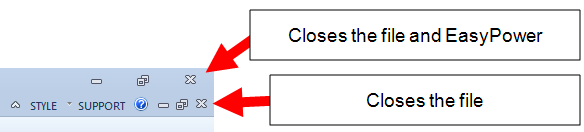
Click the upper Close button in the upper right-hand corner to close the file and the EasyPower program.
-
With the one-line window active, click the lower Close button in the upper right-hand corner. This closes the .DEZ file, but leaves EasyPower open.
- With the one-line window active, click File > Close.
- Click File > Close > Close File.
- Click File > Exit. This closes the .DEZ file and EasyPower.
Note: If you have made changes to the file that have not been saved, you will be asked if you want to save the file before closing.