Inicia una nueva sesión EasyPower, como sigue:
- Haga clic en el icono
 EasyPower o seleccionar EasyPower 2026 desde el menú de Windows Inicio o del escritorio.
- A splash screen is displayed briefly.
-
The first time you start EasyPower, you are asked to select your default settings. This dialog box is displayed only once. You can change these settings at any time in Tools > Options.
-
La primera vez que inicia EasyPower, se muestra la Página Inicial. La Página inicial es una ventana que aparece dentro de la ventana de sesión de EasyPower. Describiremos los componentes de la ventana de sesión en mayor detalle en breve.
Figura 1: Pantalla Bienvenida
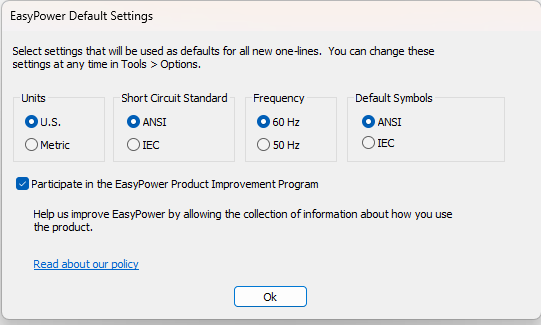
Figura 2: EasyPower Default Settings