EasyPower's customizable options are set up under Tools > Options.
The File Locations tab of the Options dialog box enables you to set the default path for types of files and templates.
- Default File Locations specifies where your files are stored.
- Default Templates specifies which particular file you want to use as your default template for that item.
- Other Default Files specifies the default files to use when you open a new one-line or perform a particular task.
The locations are set to your Documents\EasyPower 26.0 folder by default. You can set them to another location, such as a shared network folder, if needed. See Sharing the EasyPower Data for more information.
For example, the default file location for work permits is under your Documents\EasyPower 26.0\Work Permits folder. The default template being used is the WPTemplate.docx file in that folder, but you can select a different file to use as the default if you have created one.
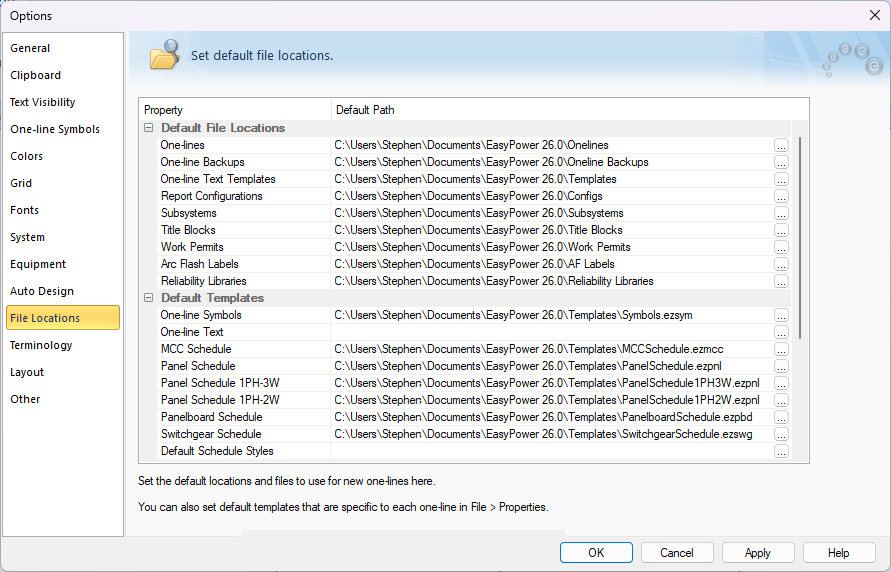
Figure 1: File Locations Tab of Options Dialog Box
Note: Each time you start EasyPower, the program automatically creates the Documents\EasyPower 26.0 folder and its subfolders if they are missing. If you use File Locations to redirect EasyPower to a different location, the new location is used instead. The files under the Documents\EasyPower 26.0 folders are not removed, but they also are not used.
Default File Locations
Double-click the item for which you want to set a file location and browse to the file location you want to use, and then click OK. The files for which you can set a location include:
- One-lines
- One-line Backups
- One-line Text Templates
- Report Configurations
- Subsystems
- Title Blocks
- Work Permits
- Arc Flash Labels
- Reliability Libraries
Note: The location for arc flash labels shown here is updated automatically if you select a different location while working directly with the labels.
Default Templates
Double-click the item for which you want to set a default template and browse to select the file you want to use, and then click OK. Changing the default templates here only affects newly created .DEZ files. It does not update existing .DEZ files.
The templates for which you can set a location are shown below.
|
Template |
File Name |
Notes |
|---|---|---|
|
One-line Symbols |
Symbols.ezsym |
|
|
One-line Text |
*.eztxt |
When blank, EasyPower uses the default text template that is installed with the program. |
|
MCC Schedule |
MCCSchedule.ezmcc |
|
|
Panel Schedule |
PanelSchedule.ezpnl |
|
|
Panel Schedule 1PH-3W |
Panel1PH-3W.ezpnl |
|
|
Panel Schedule 1PH-2W |
Panel1P-2WSchedule.ezpnl |
|
|
Panelboard Schedule |
PanelboardSchedule.ezpbd |
|
|
Switchgear Schedule |
SwitchgearSchedule.ezswg |
|
|
Default Schedule Styles |
DefaultStyleTable.xml |
For the schedule default templates, an individual .DEZ file can have a template specified in its file properties that takes precedence over the templates selected here. See Setting File Properties for more information. |
Other Default Files
In these cases, you are selecting the actual file, and not just the folder.
|
File |
File Name |
Notes |
|---|---|---|
|
Device Libraries |
Stdlib.mdb |
An individual .DEZ file can have a device library location specified in its file properties that takes precedence over the file location selected here. See Setting File Properties for more information. |
|
Equipment Defaults Template |
Default.db |
|
|
One-line Title Block |
This is blank by default, as a predefined version is used unless you select a customized version here. |
Changing the default title block here only affects newly created .DEZ files. It does not update existing .DEZ files. |
|
Work Permit Template |
WPTemplate.docx |
|
|
Text Visibility Options |
Default Visibility Options.ezvis Saved Text Visibility Options.ezvis |
On computers with EasyPower versions prior to EasyPower 2026 installed, both the Default and Saved versions of the file are installed. The path is set to the Saved file after installation. You can select the Default file instead if you prefer.
|
|
Layout Options |
Compact Layout Options.ezlyt Default Layout Options.ezlyt Extended Layout Options.ezlyt |
The Default file is selected by default, but you can also choose to use either the Compact or Extended Layout Options to adjust the layout settings. Each of these files changes the settings you see on the Layout Tab. If you make changes to the Grid Space values on the Layout Tab, it updates the values in the selected layout options file here. |
|
Reliability Library |
Annex Q.mdb |
|