Este tema describe características nuevas de EasyPower y mejoramientos, también incluye correcciones de errores en la versión.
Nota: Las funciones de la nueva versión a menudo incluyen cambios en la base de datos. Esto puede afectar a lo que ve en el Navegador de Base de datos y también lo que se incluye al exportar datos a archivos CSV. Si sus procesos de trabajo existentes se basan en información de la base de datos, asegúrese de revisar sus procesos después de actualizar el software.
EasyPower 2024 Update
EasyPower 2024 (build 24.0.0.8018) includes several updates that improve the security of the software. There are no feature changes in this update.
The information below refers to new features in EasyPower 2024 (build 24.0.0.8009).
Características y Mejoras
-
Additional Harmonics Features for Compliance with IEEE 1547 and 2800
-
Auto-Calculate Added to Fuses, Switches, Motors, MCCs, and Panels
-
New Connection Information Available in the Database Browser and Report
-
Power Flow Error Report Available in the Database Edit Focus
New Product Licensing
Beginning with EasyPower 2024, the program uses Bentley’s Subscription Entitlement Service (SES) for product activation and license management. This is done through the CONNECTION Client software that is installed on your computer as part of your EasyPower installation. With the CONNECTION Client, you create a user account that you can then use to manage all your Bentley applications, including EasyPower. Your user sign in credentials enable you to activate and use the product.
-
For individual users, the first time you sign in, you will create an account using your email. This is typically your work email.
-
If your company has an account administrator for Bentley products, they can instruct you on the credentials that you should use to sign in.
To open the CONNECTION Client after the installation, click CONNECTION Client  in your Windows system tray.
You can find Help on SES activation and the CONNECTION Client on the Bentley Communities website.
As part of this licensing change, the EasyPower product description now reflects the year of the product's release to match with the naming convention of other Bentley products. The product version now represents the year, major and minor versions, and build number, and can be found on the Start Page or in Help > About.
Support for NFPA 70E 2024
You can now select NFPA 70E 2024 in the Advanced Arc Flash Options for calculating the Shock Approach Boundary Distance and the Display of PPE Description and Level options.
The device library now includes a new tab for NFPA 70E 2024 where you can define PPE levels for the standard.
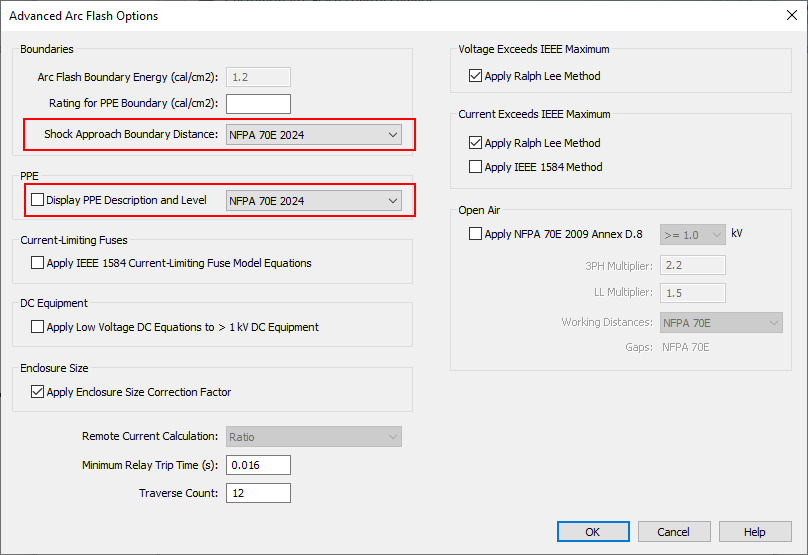
Figura 1: NFPA 70E 2024 Options in the Advanced Arc Flash Options Dialog Box
Nota: For new one-lines, NFPA 70E 2024 is now selected by default for the Shock Approach Boundary Distance, but you can change it here if needed. Existing one-lines will continue to use the original option that they were set up with until you change it.
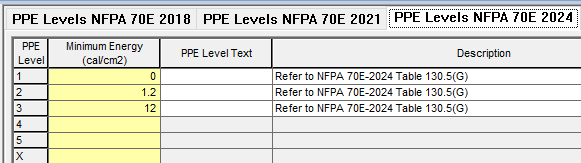
Figura 2: PPE Levels NFPA 70E 2024 Tab in the Device Library
Additional Harmonics Features for Compliance with IEEE 1547 and 2800
Calculation and summary reports of harmonic current distortion limits according to IEEE 1547 and IEEE 2800 are available for sites with distributed energy resources or inverter-based resources.
In the Harmonics Options, you can select from either the IEEE 519-2022 or 2014 reports.
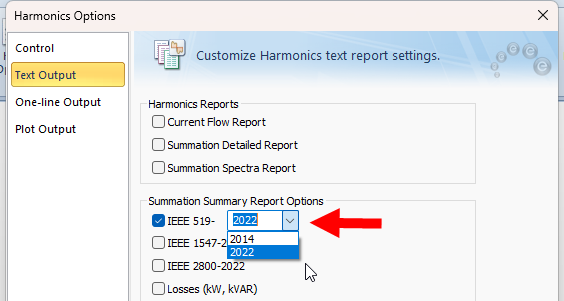
Figura 3: IEEE 519 Options on the Harmonics Options - Text Output Tab
There are new options on the Harmonics tab of HV and LV breakers, fuses, and switches.
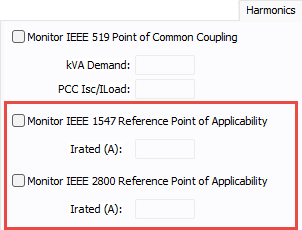
Figura 4: New Harmonics Options for Breakers, Fuses, and Switches
Change ID Names Directly on the One-Line or Drawing
You now have the ability to change the ID name of any equipment item on the one-line or a drawing by double-clicking on the item's text box where the name is displayed.
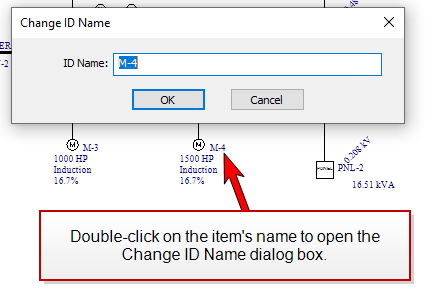
Figura 5: Double-Click on the Item's Text Box to Open the Change ID Names Dialog Box
Nota: You can also select a single item on the one-line and press F2 to open the Change ID Name dialog box. Previously, F2 toggled the Snap-to-Grid feature. The Snap-to-Grid toggle action can now be invoked by pressing the F7 key.
Quick Data Entry via the Database Browser
In the Database Browser, when you double-click on a cell in the grid, the equipment's data dialog box opens with that field selected, enabling you to quickly edit the data.
For example, if you select the Length cell on a cable and double-click, the Cable Data dialog box opens on the Specifications 1 tab with the text in the Length box already selected.
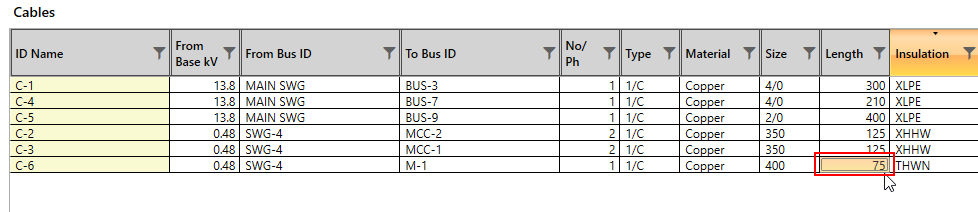
Figura 6: Double-Click on the Length Cell of a Cable in the Database Browser
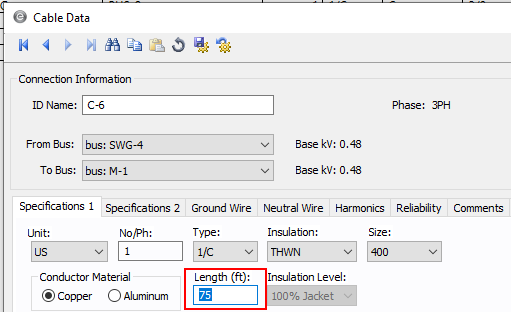
Figura 7: The Length Box is Selected on the Specifications 1 Tab
Store Arc Flash Values for All Bus Types
The program now stores arc flash values for all bus types when you fault and store arc flash in the Short Circuit focus. These can be viewed in the Database Browser.
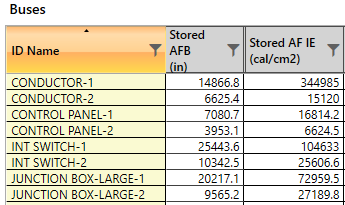
Figura 8: Stored Arc Flash Values for Buses in the Database Browser
Auto-Calculate Added to Fuses, Switches, Motors, MCCs, and Panels
Information for fuses, switches, motors, MCCs, and panels is now auto-calculated based on manufacturer library information. An Auto-calculate check box replaces the Calculate button on fuses, switches, motors, MCCs, and panels. También puede optar por deshabilitar el cálculo automático e ingresar estos datos manualmente.
For MCCs and panels, the Auto-calculate checkbox has been added to the header area of the Description tab.
For all new items, the checkbox is selected by default. You can change the default setting in Equipment Defaults. For databases that were created in versions prior to EasyPower 2024, the checkbox is not selected so as to preserve any user-entered values. You can use the Change > Auto-Calculate option to select the checkbox on items in upgraded databases. Ver Para Cambiar las Opciones de Cálculo-Automático para más información.
Nota: This also updates any related equipment in MCC and panel rows. If an ATS is selected, the switch or breaker for the ATS is also updated.
Fusibles
Pestaña de Cortocircuito
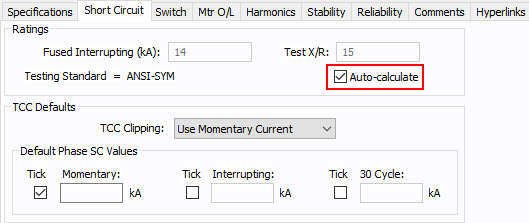
Figura 9: Fuse - Short Circuit Tab
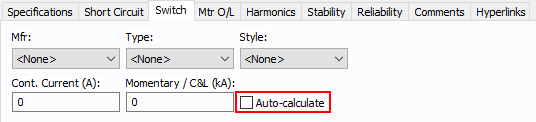
Figura 10: Fuse - Switch Tab
Interruptores
Pestaña de Cortocircuito
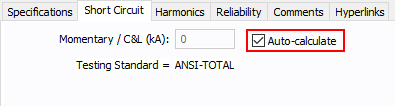
Figura 11: Switch - Short Circuit Tab (ANSI)
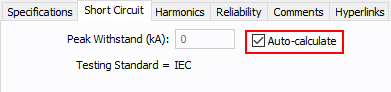
Figura 12: Switch - Short Circuit Tab (IEC)
Motores
Pestaña de Cortocircuito
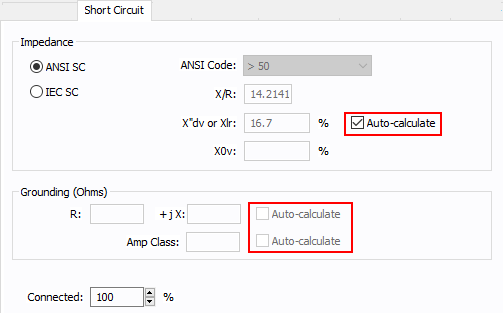
Figura 13: Pestaña de Cortocircuito - Motor
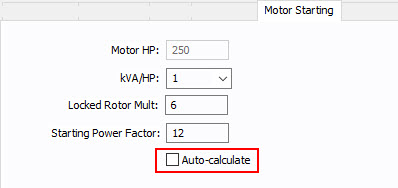
Figura 14: Pestaña de Arranque de Motor - Motor
CCMs
Pestaña de Descripción
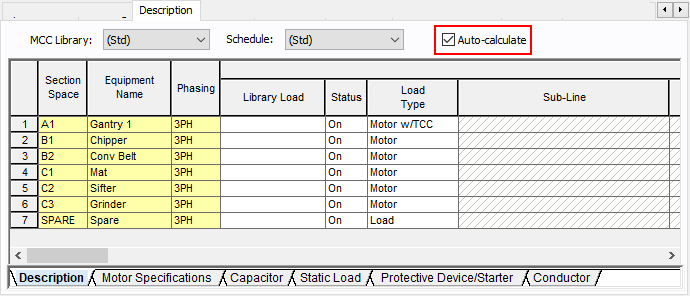
Figura 15: Pestaña de Descripción - CCM
When selected, this fills in computed values for Motor FLA, X/R, kW, and kVAR; protective device/starter Int kA; and conductor Cond Rating (A). Puede anular estos valores al borrar la casilla de verificación y escribir números diferentes.
Pestaña de Cortocircuito
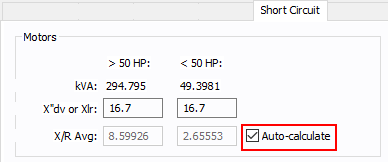
Figura 16: MCC - Short Circuit Tab (U.S.)
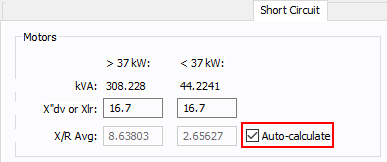
Figura 17: MCC - Short Circuit Tab (Metric)
Paneles
Pestaña de Descripción
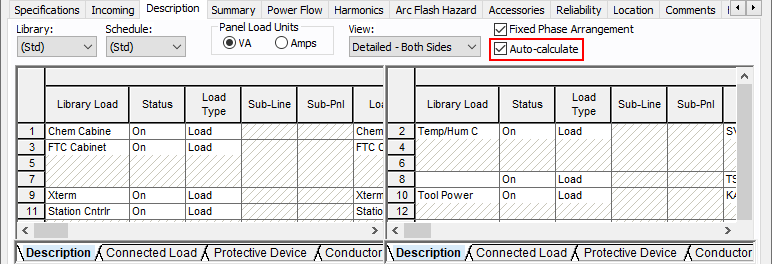
Figura 18: Panel Description Tab
Change Auto-Calculate Options
In additional support of this feature, the Change Auto-Calculate Options button now handles the additional equipment.
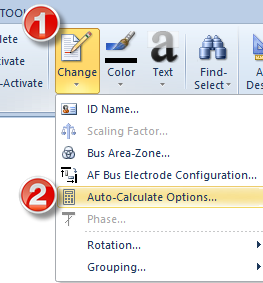
Figura 19: Change Auto-Calculate Options
New Connection Information Available in the Database Browser and Report
There are new columns in the Database Browser and Report that show connection information. These can be seen in the All Columns report configuration and can be added to custom report configurations. The new columns are:
- From Bus Type
- From Device ID
- From Device Type
- To Bus Type
- To Device ID
- To Device Type
The new columns are available on the following equipment:
- Cable
- Electroducto
- Línea de Transmisión
- CL Reactor
- Two-Winding Transformer
- Three-Winding Transformer
- Zigzag Transformer
- Servicio-eléctrico
- Generador
- Motor
- UPS
- Variador Ajustable de Frecuencia
- Condensador
- Carga
- Derivación
- Filtro
- Batería
- Fotovoltaico
- Rectificador
- Inversor
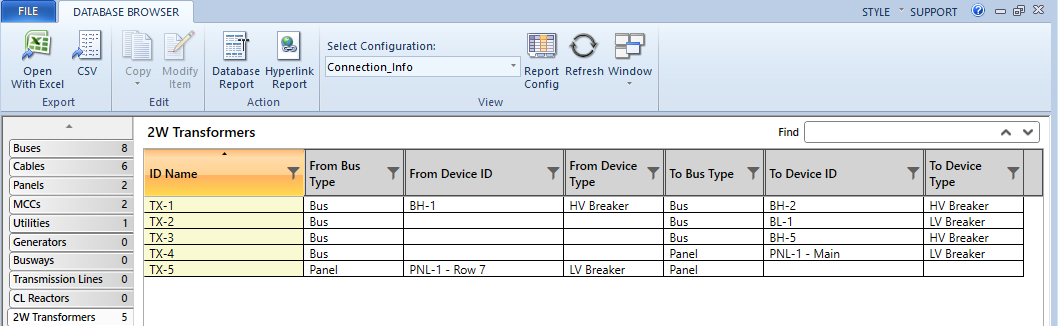
Figura 20: From and To Columns Displayed in the Database Browser for Two-Winding Transformers
Power Flow Error Report Available in the Database Edit Focus
When you open the Power Flow focus, if any errors are found, the program generates an error report. Previously, the report was only available while you were still in Power Flow. Now, the Power Flow Error Report remains available from the Window drop-down list when you switch back to Database Edit mode. You can click right-click on Edit next to items on the report and then click Edit Data to edit the items and resolve the errors.
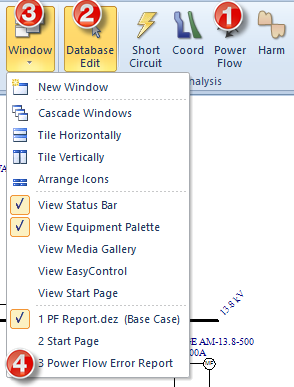
Figura 21: The Power Flow Report is Now Available from the Database Edit Focus
Revit® 2024 Support
The Revit Integrator now supports importing BIM projects from the latest version of Autodesk® Revit®. You can download the EasyPower Integrator app from the Autodesk App Store. The App Store will be updated with the latest version shortly after the EasyPower 2024 release, so please verify the version prior to downloading.
Nota: The Revit sample file changed in this version. As some of our examples are based on the sample file, there are now two sets of Revit tutorials—one for Revit 2024, and one for all earlier versions. Ver Tutorial - Revit® Integrator For Revit 2024 y Tutorial - Revit® Integrator For Revit Versions Prior to 2024 para más información.
Avery 60503 Label Template
The Avery 60503 label is now available as a page layout when printing arc flash labels.
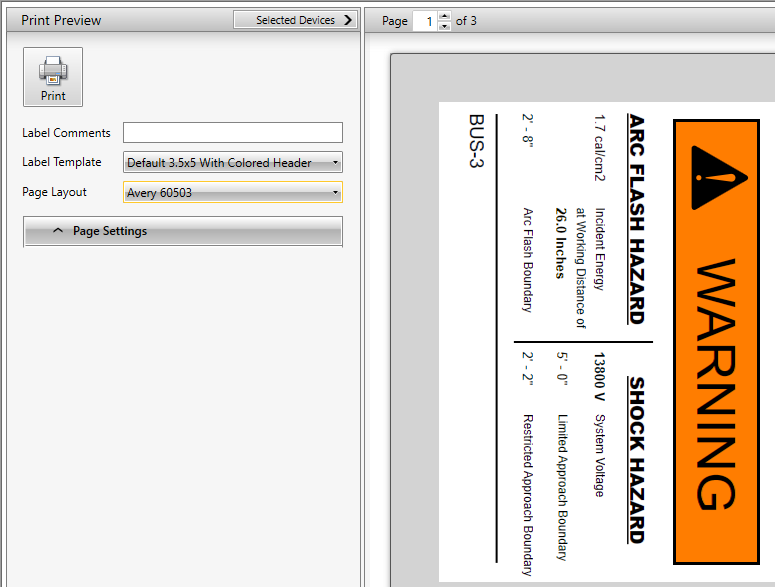
Figura 22: The Avery 60503 Label Template
Correcciones de Errores
En esta versión se han abordado los siguientes problemas:
Arc Flash/Short Circuit
-
Fixed an issue where the sequence of events for a relay instantaneous was reporting the trip time based on the arc flash options minimum relay time.
-
Fixed an issue where the IEEE 1584-2018 method was using the legacy manual override option of forcing arc current to be a percentage of the bolted fault current, for those project files that had such an option set in prior versions.
-
Fixed an issue on the Equipment Duty Report where 1/2 cycle duty was showing asymmetrical current for buses rated at peak current.
-
Fixed an issue where lines moved in the arc flash label editor were slightly changed in dimensions.
- Fixed an issue where the NACD value in the Interrupting report was incorrect for double-line-to-ground faults on a bus with only generators in the system.
-
Fixed an issue where the NACD value in the Interrupting report was incorrect when a utility was disconnected from the system within the Short Circuit focus.
-
Fixed an issue where the integrated method of arc flash calculations for DC equipment was using the working distance based on the NFPA 70E-2009 Annex D.8 method.
-
Fixed an issue where the integrated method of arc flash calculations ignored the breaker connected directly to the inverter.
-
Fixed an issue where the Interrupting report for a line-to-line fault was reporting an incorrect X/R ratio.
Coordinación
- Fixed an issue in TCC plots where the Reference kV in the Format Plot Area dialog box did not match the value shown on the TCC plot due to a rounding error.
-
Fixed an issue where fuses in a stored TCC were showing only the minimum melting curve when viewed in read-only mode.
-
Fixed an issue where the TCC plot of a solid state trip (such as Siemens ETU 350) had a short time delay that was not showing the horizontal band at the right of the I^2T slope delay.
-
Fixed the incorrect crossover of a solid state trip curve in a TCC when an additional overload relay curve is merged.
-
Fixed an issue where the program terminated unexpectedly while moving the TCC notes for relay settings.
-
Fixed an issue where when printing to .PDF, any unsaved TCC plot with a zoom level different from the default caused the print to use the default zoom.
Navegador de Base de datos
-
Fixed an issue where exporting to .CSV from the Database Browser did not occur if the file was not saved first.
-
Fixed an issue where exporting to .CSV from the Database Browser was not showing non-ASCII characters correctly.
-
Fixed an issue in the Database Browser for motors where the column label "AFD Type" should just be "Type."
-
Fixed an issue where Database Browser was displaying the utility fault unit as "Amps" instead of "kA."
Biblioteca de Dispositivos
-
Fixed an issue where the text added to the notes field for existing records was not being saved in the device library.
-
Fixed an issue where DC breakers were displaying a message on incomplete data at bus voltages greater than 630V.
-
Fixed an issue where the Library kV column for fuses in the Database Browser and Database Report was incorrectly labeled as Base kV.
Misceláneo
-
Fixed an issue where the export of schedules to .DXF caused long strings of text to overlap the grid lines.
Diagramas-unifilares
-
Fixed an issue where a CT was showing the entire line even though the Show Entire Line option was not selected.
-
Fixed an issue where an inserted annotation line becomes invisible after selecting a color from the More color palette.
Flujo de Potencia
-
Fixed an issue where performing a power flow analysis while in drawings caused the program to terminate unexpectedly.
-
Fixed an issue where the dialog box for some LV breakers gave an incorrect warning of the instantaneous pickup being less than short time pickup.
-
Fixed an issue where in EasyPower 11.0, all swing and PV bus connected sources were treated as Y-grounded sources in power flow. Beginning with EasyPower 2024, if a generator is set with delta connectivity, then it is treated as a delta generator in power flow for swing, PV, and PQG sources.
Administrador de escenarios
-
Fixed an issue where the program terminated unexpectedly when a DC bus was deactivated in scenarios.
-
Fixed an issue where the retrieval of the interrupting kA value of HV fuses was based on the Library kV field instead of the connected bus kV.
-
Fixed an issue where the program terminated unexpectedly after opening a scenario with a newly added ATS.
-
Fixed an issue where MCCs and panels with main breakers created in a scenario became disconnected from the attached item.
-
Fixed an issue where the program terminated unexpectedly when opening scenarios that had been created in version 11.0 and included inverters or rectifiers.