There are several methods available to use the Auto Layout feature on selected items.
Select Items on the One-line
To select items on the one-line, drag a rectangle around the items you want to layout, release the mouse button, and on the Home tab, under Layout, click Auto Layout Selected Equipment.
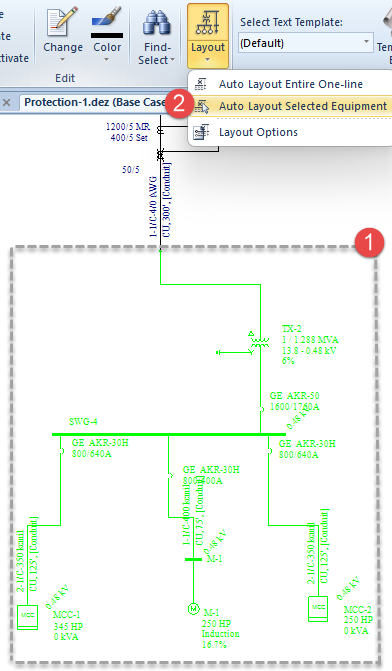
Alternatively, you can select the items and then click the Layout button.
The items are automatically laid out based on the settings selected in the Layout Options.
Select Downstream Items
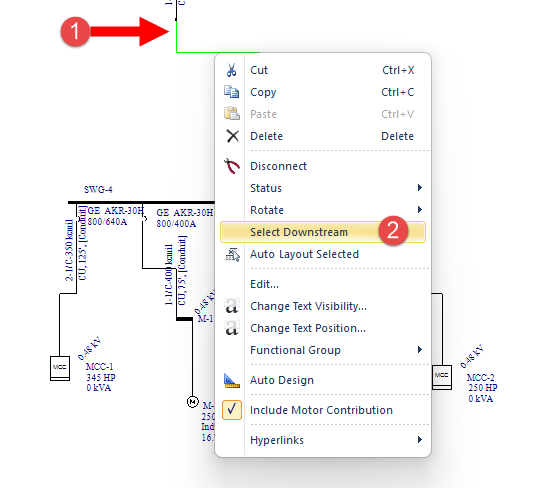
If all the items you want to layout are on a branch, you can use the Select Downstream feature to quickly select all the items within the branch and then use the Auto Layout Selected feature to layout the selected items.
To do this, right-click the topmost item on the branch, then click Select Downstream. This highlights all the items in the branch.
Right-click on any selected item, and then click Auto Layout Selected.
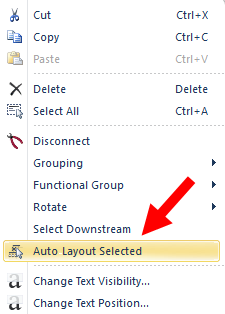
The items are automatically laid out based on the settings selected in the Layout Options.